

You press W on your laptop, and a drone across the room tilts forward. It feels like the key is wired straight to the propellers. It isn’t, and what happens in between is one of the most useful ideas in drone programming. Let’s follow that one keypress all the way to the motors, and back again.
Key takeaways
- Your keypress becomes a request (like “climb” or “yaw left”) sent as a MAVLink message, not a direct motor command.
- The flight controller firmware decides what to do with that request and runs the fast balancing loop on board. The ESCs then drive the motors.
- Telemetry flows back so you can see what happened. Practise in a simulator first, then watch real messages with the propellers off.
Your keypress is a request, not a motor command
A program on your laptop reads the key and turns it into an intention, such as “move forward”. It packs that intention into a MAVLink message and sends it over a link to the drone’s flight controller. The flight controller decides how to act on it and spins the motors, then reports back. Here is the whole path in seven steps:
1. Key pressed on the laptop
2. Program maps the key to an intention
3. Intention packed into a MAVLink message
4. Message sent over a cable, telemetry radio or Wi-Fi
5. Flight controller checks it and decides
6. ESCs drive the motors
7. Telemetry flows back to the laptop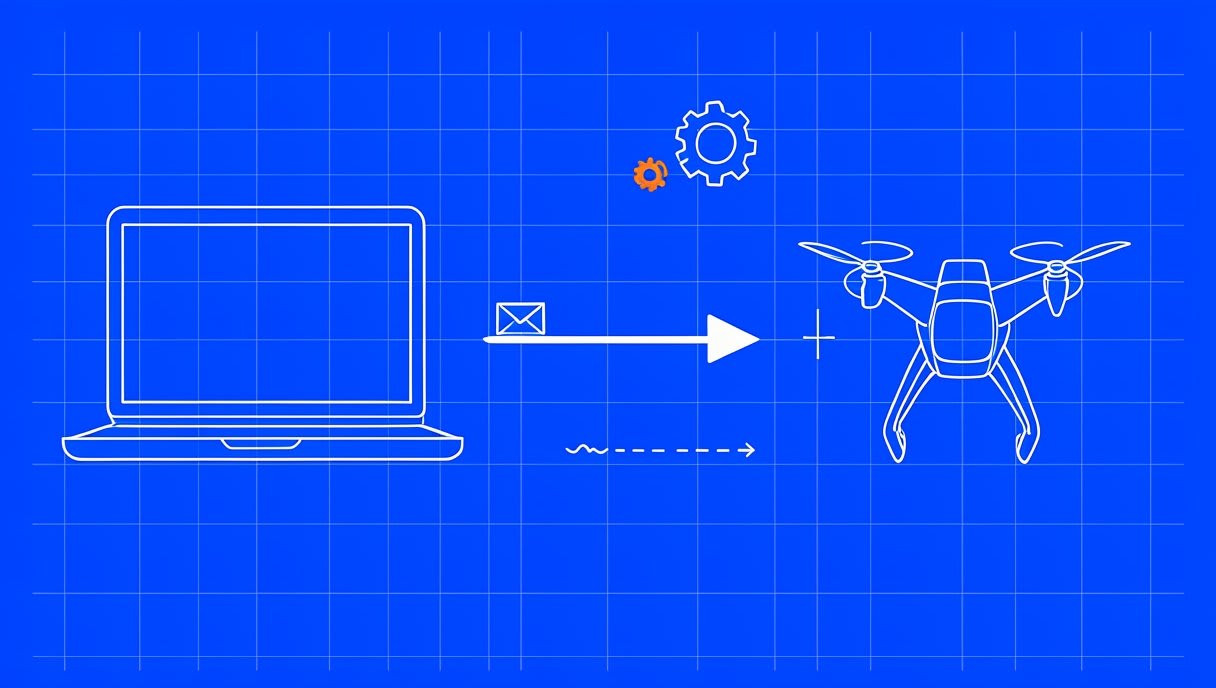
So what happens at each stop?
The 7 stops on the command path
1. The keyboard and your program
The drone never sees your keyboard. A program on the laptop, such as a Python script or a ground station app, listens for key presses. Everything starts there.
2. Turning a key into an intention
The program maps each key to an intention: W might mean “go forward”, Q might mean “yaw left” (turn on the spot). It does not say “motor 3, spin faster”. Think of it like ordering food: you say what you want, and the kitchen decides how to cook it.
3. Packing it into a MAVLink message
MAVLink is a shared message format that lets ground software and drones talk to each other. Open-source autopilots such as ArduPilot and PX4 both use it, so one program can talk to drones running either. For a deeper look, read our MAVLink explainer.
4. The link: cable, telemetry radio or Wi-Fi
The message then needs a physical path. On the bench, that is often a USB or serial cable. In the air, it might be a telemetry radio (a small radio pair, one at each end) or Wi-Fi.
5. The flight controller decides
The flight controller is the drone’s onboard brain. Its firmware (the software running on the board) checks your request before acting. Is the drone armed (ready to spin its motors)? Which flight mode is it in? Does a safety check say no? It can ignore or limit a command, which is a good thing. Learn more in what a flight controller does.
6. ESCs and motors
The flight controller’s control loop turns “go forward” into exact outputs for each motor. The ESCs (electronic speed controllers) take those outputs and drive the motors. Here’s how an ESC works.
7. Telemetry flows back
Telemetry is the drone reporting on itself: its attitude (how it is tilted), battery, flight mode and more. These messages travel back to the laptop. That is how your program and ground station know whether the command worked. But why go through all this? Why not just send motor speeds?
Why the laptop doesn’t drive the motors directly
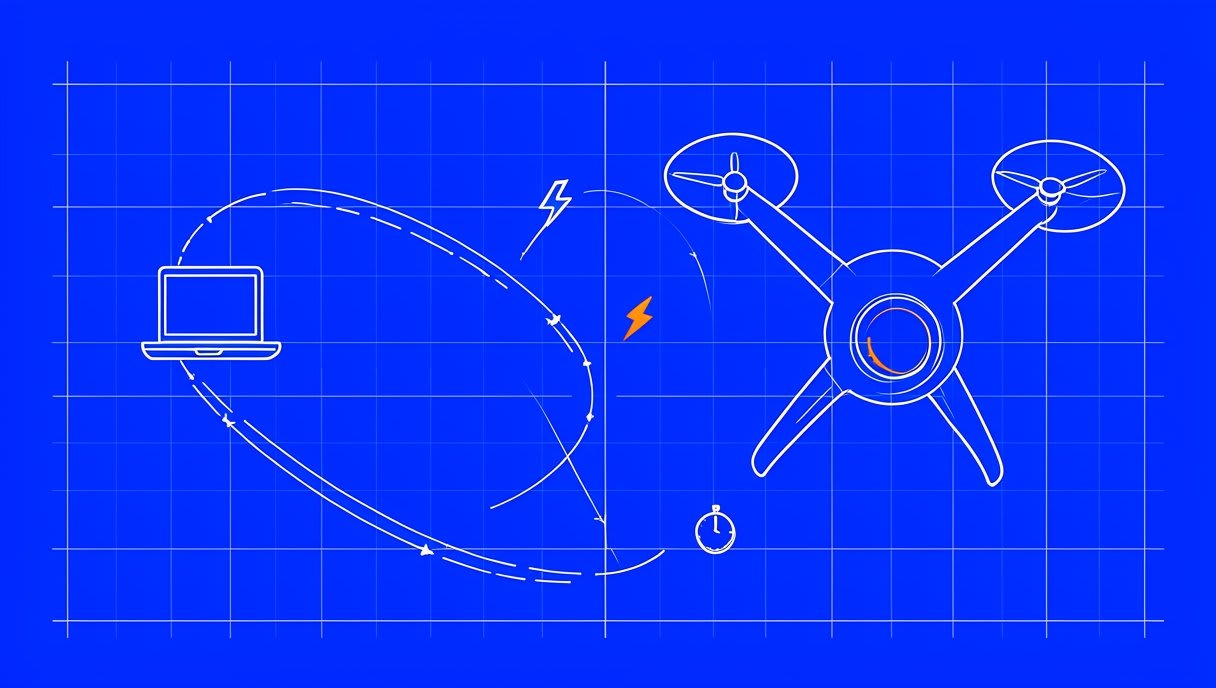
A drone is always slightly falling over. Gusts, uneven weight and tiny motor differences push it off balance all the time. Keeping it level needs constant, fast corrections from sensors on board. A wireless link adds delay and can drop messages, so the laptop is too far away to balance the drone. It’s like steering a bicycle by phoning someone else who holds the handlebars. So the laptop sends intentions, and the flight controller does the balancing.
Want to feel this split for yourself? The free Aasma browser simulator lets you fly with your keyboard, with no install.
What happens if the link drops?
Links fail: a radio goes out of range, Wi-Fi stutters, a cable comes loose. A failsafe is a safe action the flight controller is set up to take when commands stop arriving. Depending on the firmware and settings, that might be holding position, landing or returning to where it took off. The details deserve their own post, which is coming next in this series.
Real open-source tools for each stage
You don’t have to build any of this from scratch. These open-source projects, built and maintained by their own communities, cover each stage:
| Stage | Tool | What it is |
|---|---|---|
| Program to message | pymavlink | Python access to MAVLink messages |
| Program to message | MAVSDK-Python | A Python API for PX4 and MAVLink drones |
| Watch messages and telemetry | QGroundControl | A cross-platform ground station for PX4 and ArduPilot |
| Watch messages and telemetry | Mission Planner | A Windows ground station for ArduPilot |
| Flight controller firmware | ArduPilot or PX4 | Open-source autopilots |
pymavlink works close to the raw messages; MAVSDK-Python gives you a friendlier layer on top. When you’re ready to write code, start with our guide to programming a drone with Python.
Try it safely: simulator first, then props off
Step 1: fly in the simulator. Open the free Aasma simulator at sim.aasmaaerospace.in and fly with your keyboard. It runs in your browser with six missions. It’s a practice space with simulated physics, not a real radio link, so it builds your feel for controls without any risk.
Step 2: watch real messages on the bench. With real hardware, remove the propellers first. Connect a ground station and watch the telemetry change as you tilt the drone by hand. You’ll see stop 7 in action.

Before any real flight, check the official government source for the drone rules where you live.
FAQ
Can you fly a drone with a laptop keyboard?
Yes, in general. A program reads your keys and sends commands to the flight controller over a link. The exact setup depends on the drone’s firmware and link, so try it in a free browser simulator first.
What language do a laptop and a drone use to talk to each other?
Many open-source autopilots, including ArduPilot and PX4, use MAVLink. It’s a shared message format, so ground software and drones can understand each other. Our MAVLink explainer goes deeper.
Is a keyboard drone simulator the same as controlling a real drone?
No. A simulator uses simulated physics and has no real radio link. It is a safe place to learn controls and ideas before you move to real hardware.
Where to go next
You can now draw the full path: key, program, MAVLink message, link, flight controller, ESCs, motors, and telemetry back. That map makes every drone programming tutorial easier to follow. Start by flying with your keyboard in the free Aasma browser simulator, no install needed. One question to take with you: if your keyboard, a radio controller and a script all send commands, who is really flying the drone?


